Many of Blogs By Heather visitors and customers use Debbie McNeil's (http://www.craftyperson.com/) newsletter service and wanted to know how to add her Newletter Sign Up Box to their Blogger blogs.
She has a newsletter and downline newsletter service, and is a wonderful person to speak to and work with. Be sure to check out her website for more information on her services: www.craftyperson.com.
Her newsletter service is different from mine. I customize your Constant Contact newsletter to coordinate with your blog banner and color scheme, etc. Click here to learn more about my newsletter service.
Adding the Sign Up Box
1. Login to Blogger.
2. From the Dashboard, click on Layout.
3. Click on Page Elements.
4. Click on Add a Gadget at the top of the sidebar.
5. From the list of available gadgets, choose HTML/JavaScript.

6. In the next window that pops up, type in a Title, such as “Subscribe To My Newsletter” or “Sign-up for My Newsletter”.
7. In the Content area, copy and paste the HTML/form code that Debbie McNeil from www.craftyperson.com will send you for your personal newsletter setup. Below is just sample for testing purposes and documentation purposes only (you should not use this code for your blog).
<form name="form1" method="post" action="https://www.mcssl.com/app/contactsave.asp">
<input name="merchantid" type="hidden" id="merchantid" value="129357">
<input name="ARThankyouURL" type="hidden" id="ARThankyouURL" value="tech.craftyperson.com">
<input name="copyarresponse" type="hidden" id="copyarresponse" value="0">
<input name="custom" type="hidden" id="custom" value="0">
<input name="defaultar" type="hidden" id="defaultar" value="352316">
<input name="allowmulti" type="hidden" id="allowmulti" value="0">
<input name="visiblefields" type="hidden" id="visiblefields" value="Name,Email1">
<input name="requiredfields" type="hidden" id="requiredfields" value="Email1">
<table>
<tr>
<td>Name</td>
<td><input name="Name" type="text" size="40"></td>
</tr>
<tr>
<td>Email</td>
<td><input name="Email1" type="text" size="40"></td>
</tr>
<tr align="center">
<td colspan="2">
<input type="Submit" name="cmdSubmit" value="Submit">
</td>
</tr>
</table>
</form>
8. Then click on Save.
9. Now the newly added gadget appears at the top of the sidebar. Although this is a prime location for your newsletter signup, you can click and drag it wherever you would like it in the sidebar.
10. When finished, click on Save.
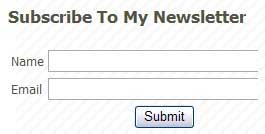
11. And you’re done! It will look similar to the image below when you view your blog.
Another Option - Making It More Customized
If you wanted to make the sign-up box more personalized, you can add your own greeting text, such as
To receive monthly stamping and scrapping tips, learn new stamping techniques, receive special coupons and stay informed about upcoming promotions, sign up for my newsletter by entering your name and email address below. Thank you!
This would be placed immediately above the start of your HTML code, right before and above the <form> statement. In this example, it would be place right above the line:
<form name="form1" method="post" action="https://www.mcssl.com/app/contactsave.asp">
Again, remember to click Save to save your changes. It would then look like this (below) for example:

Happy blogging!